Questionnaires can be configured to invite participants via WhatsApp, using the Meta WhatsApp Business API, instead of (or in addition to) SMS and email.
This page covers:
- Configuring WhatsApp Integration
- When a WhatsApp Invite Is Sent
- Sending Behavior
- Failure Behavior
- Delivery Status Tracking
- Webhook Setup (Meta Side)
- Getting Your Credentials from Meta (Production)
- Open the questionnaire in the Clearspeed web app.
- In the questionnaire-specific left navigation bar, click Integration.
- In the WhatsApp Integration section, click Modify Credentials.
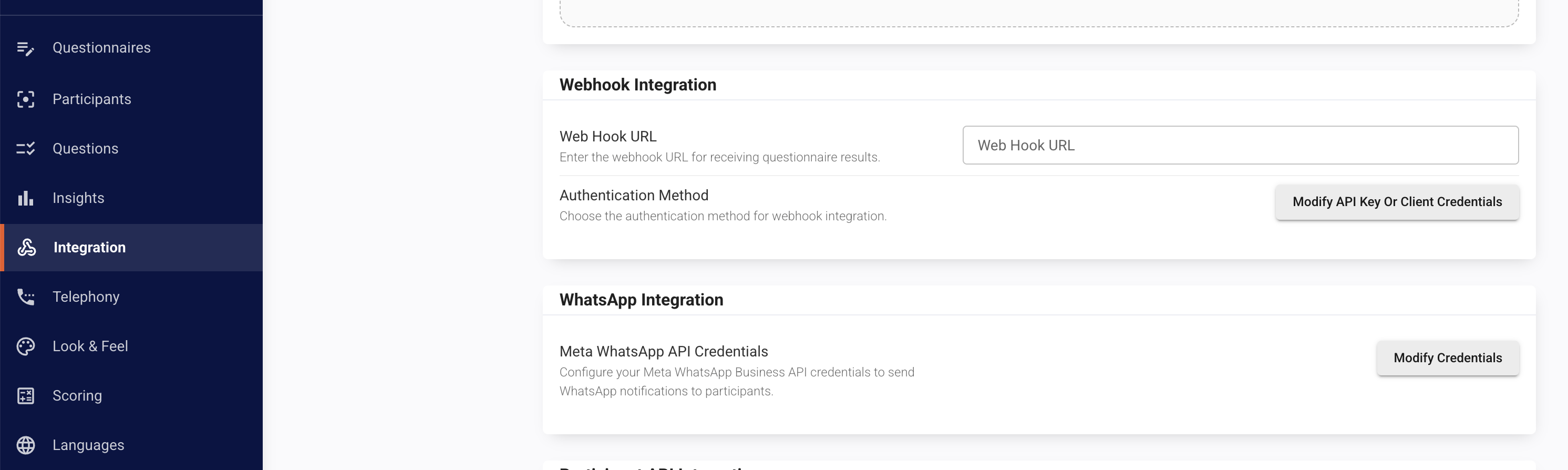 Screenshot placeholder — Integration page, WhatsApp Integration section
- Fill in the following fields:
| Field | Description |
|---|---|
| Meta Access Token | Meta WhatsApp Business API access token. Masked in the UI, with a show/hide toggle. |
| Meta Phone Number ID | The Meta-registered phone number ID sending messages. |
| Meta Template Name | Name of the pre-approved Meta message template to use. |
| Allowed Placeholders | Placeholders to insert into the template body, chosen via the placeholder picker. |
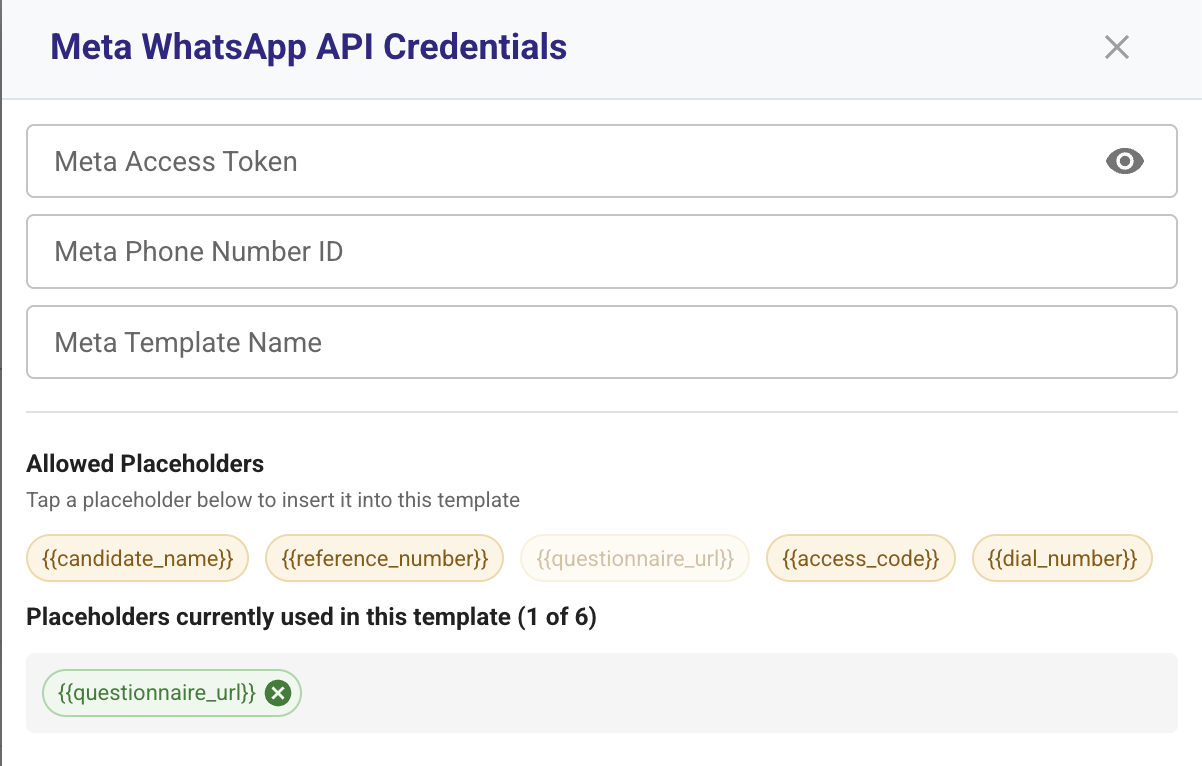 Screenshot placeholder — Modify Credentials dialog
- Click Save.
Only these are accepted:
candidate_namereference_numberquestionnaire_urlaccess_codedial_number
- Automatically — when a participant is created with a phone number, if WhatsApp integration is fully configured for the questionnaire, the participant is invited via WhatsApp instead of SMS.
- Manually — an admin can trigger (or re-trigger) a WhatsApp invite via the Send Message Invite action on the Participant list/detail view.
- Participant phone number must be in E.164 format (e.g.
+14155552671). - The template language should be the same as the language(s) configured in the Questionnaire — the language used at send time is resolved from each participant's own language, so the approved Meta template must exist for every language the Questionnaire supports.
- A retry within 30 seconds of a prior non-failed WhatsApp send for the same participant/questionnaire is treated as a duplicate and returns the original send result rather than sending again.
| Language | Meta Language Code |
|---|---|
| Arabic | ar |
| Arabic (Egyptian) | ar_EG |
| Arabic (Qatari) | ar_QA |
| Afrikaans | af |
| Albanian | sq |
| Bulgarian | bg |
| Chinese | zh_CN |
| Croatian | hr |
| Czech | cs |
| Danish | da |
| Dutch | nl |
| English (UK) | en_GB |
| English (US) | en_US |
| English (Australia) | en_AU |
| English (Canada) | en_CA |
| English (India) | en_IN |
| English (Malaysia) | en_MY |
| Estonian | et |
| Finnish | fi |
| French | fr |
| French (Canada) | fr_CA |
| German | de |
| Greek | el |
| Hausa | ha |
| Hindi | hi |
| Italian | it |
| Japanese | ja |
| Kazakh | kk |
| Korean | ko |
| Latvian | lv |
| Lithuanian | lt |
| Malay | ms |
| Norwegian | nb |
| Pashto | ps_AF |
| Persian | fa |
| Polish | pl |
| Portuguese (Brazilian) | pt_BR |
| Punjabi | pa |
| Romanian | ro |
| Russian | ru |
| Serbian | sr |
| Slovak | sk |
| Slovenian | sl |
| Spanish | es |
| Spanish (Chilean) | es_CL |
| Swedish | sv |
| Thai | th |
| Turkish | tr |
| Ukrainian | uk |
| Urdu | ur |
| Vietnamese | vi |
| Zulu | zu |
A participant whose configured language isn't in this list cannot be sent a WhatsApp invite.
When a WhatsApp send fails — for any reason (bad credentials, unapproved template, invalid phone number, provider outage, etc.) — on the automatic invite sent at participant creation, the failure is caught and the participant is automatically sent an SMS invite instead, using the same participant/questionnaire data. An audit log entry is recorded noting the WhatsApp failure and the fallback to SMS. The participant still receives an invite; only the channel changes.
| Scenario | Result |
|---|---|
| WhatsApp integration incomplete (any of Access Token / Phone Number ID / Template Name / Template Language missing) | Rejected — "WhatsApp provider is not configured for this questionnaire" |
| Questionnaire has no guide URL configured | Rejected — "questionnaire is not configured with a guide URL" |
| Participant's language has no supported WhatsApp language mapping | Rejected — "no WhatsApp template language mapping for language_code ..." |
| Participant phone number not in E.164 format | Rejected — invalid phone number format |
| Duplicate send within 30 seconds of a prior non-failed attempt | Not resent — returns the original send's result |
| Meta rejects or fails the send (e.g. bad credentials, unapproved template) | Send fails — error surfaced with the underlying provider error |
| Message sent successfully but the delivery record fails to save | Send is still considered successful, but delivery status updates cannot be tracked for that message |
Meta sends delivery status callbacks — sent, delivered, read, failed — via webhook, which update the WhatsApp message record.
Since Clearspeed runs in multiple regional environments, the webhook must be registered separately per region — using that region's own domain.
Meta supports two ways to configure this:
Applies to every WhatsApp Business Account (WABA) and phone number connected to the App, unless overridden. This is the option that matches Clearspeed's setup (one webhook per region, not per tenant).
- Go to Meta for Developers → your production App → WhatsApp → Configuration.
- Under Webhook, click Edit.
- Enter the Callback URL and Verify Token (values below), then click Verify and Save — Meta will call the Callback URL with the Verify Token to confirm it before saving.
- Still under Webhook, click Manage and subscribe to the
messagesfield — this delivers status updates (sent/delivered/read/failed) and inbound messages to Clearspeed.
Meta's Graph API also supports overriding the callback URL and verify token for a specific WABA or phone number, instead of using the App-wide one:
POST /{waba-id}/subscribed_apps
override_callback_uri=<callback-url>
override_callback_uri_verify_token=<verify-token>
This exists for Tech Providers/ISVs managing many clients' WABAs under one shared App, where each client needs its own callback endpoint. Not needed for Clearspeed's current setup, since routing is per-region rather than per-tenant — but relevant if a tenant ever needs to receive WhatsApp events on their own endpoint independent of the region-wide webhook.
Callback URL (per region):
| Region | Webhook URL |
|---|---|
| United States | https://api.us.clearspeed.com/message-delivery/webhooks/meta |
| United Kingdom | https://api.uk.clearspeed.com/message-delivery/webhooks/meta |
Verify Token: provided by Clearspeed's integration team — use the exact value they give you. Meta sends this back during the verification handshake to confirm the endpoint is authentic.
Prerequisites: a verified Meta Business, and the App/WhatsApp Business Account switched from Development to Live mode — otherwise sends are restricted to a handful of pre-registered test numbers.
- Go to Business Settings → Users → System Users.
- Create (or select) a System User with Admin role.
- Click Generate New Token → select your App → grant the
whatsapp_business_messaging(andwhatsapp_business_management) permissions. - Copy the generated permanent token — this is the Meta Access Token. Treat it as a secret; rotate it if exposed.
- In WhatsApp Manager → API Setup (or Phone Numbers), select the production number registered for sending.
- Copy its Phone Number ID — this goes in the Meta Phone Number ID field.
- Go to WhatsApp Manager → Message Templates → Create Template.
- Add one placeholder in the template body for each value you want filled, choosing only from the allowed parameters:
candidate_name,reference_number,questionnaire_url,access_code,dial_number. Add them in the same order they'll be selected in the Allowed Placeholders picker on the Integration page. - Submit for Meta's approval — templates must be approved before they can send to real participants.
- Once approved, use the template's exact name as the Meta Template Name.